Input and Output Devices
input. output. input device. output device. I/O. input/output. peripherals. keyboard. mouse. computer mouse. monitor. speakers. printer. touch screen. touchscreen. what is an input device. what is an output device. is a touch screen input or output. what is the difference between input and output. who invented the computer mouse
⏱ 6 min read
In one sentence: Input devices, such as a keyboard, mouse, microphone or touch screen, bring information into a computer; output devices, such as a screen, speakers or printer, give results back to the world.
Why should I care?
In What is a Computer?, you met four jobs: input, processing, storing and output. This page covers the first and last.
You use them all day: a keyboard, a mouse, a touch screen, a screen, speakers. A tablet also has sensors: parts that measure something about the world. Its motion sensor turns the picture when you turn the tablet. Its light sensor makes the screen dimmer at night.
As a programmer, you will write programs that wait for input, such as a click, and then give output.
Analogy
On that page, a cook followed a recipe. Now look at the kitchen from outside: it has a small window to the dining room.
- A waiter passes an order in through the window. That is input.
- The cook makes the dish. That is processing.
- The cook passes the finished dish out through the window. That is output.
Where the analogy breaks down: a kitchen window passes the same paper and the same plate from one side to the other. Input and output devices change what passes through them. A keyboard turns the press of your finger into a signal: a pattern of electricity that carries information. A screen turns signals from the computer into light.
How it actually works
Input devices
An input device brings information into the computer. It turns something from the outside world, such as a movement, a sound or a touch, into signals. Examples:
- keyboard, mouse and other buttons
- microphone (for sound) and camera (for pictures)
- touch screen
- sensors, such as a tablet's motion sensor and light sensor
Output devices
An output device turns signals from the computer into something people can see, hear or hold. Examples:
- screen (also called a monitor or display)
- speakers and headphones
- printer
From the outside world to numbers, and back
Inside the computer, all information is kept as numbers. The signals from an input device end up as numbers, and an output device turns numbers back into something for people. Two examples:
- A microphone turns sound into an electrical signal. A small part then measures that signal again and again, at regular moments, and keeps each measurement as a number. See Sound as Numbers.
- A picture on a screen is made of tiny squares called pixels. Each pixel shows one colour. The computer gives each pixel three numbers: how much red, green and blue light to show. See Images as Numbers.
Devices that do both
Some devices do input and output, such as a touch screen. You touch it to give input, and it shows you pictures as output. An internet connection (the part that links your computer to other computers) also works both ways: it brings information in from other computers and sends information out.
How it came to be
The Computer History Museum says that early computers worked with people mostly through text. For text, designers did not invent new machines. They used existing typing machines, such as teletypes and automatic typewriters. These machines brought the QWERTY keyboard layout. The museum says it is still the most common layout for the Latin alphabet, which English uses.
Screens were expensive at first. Whirlwind, a computer at MIT (a university) that started working in 1951, may have been the first computer to show text and pictures on a video screen, according to the museum.
The mouse came from a lab that Douglas Engelbart set up at the Stanford Research Institute (now SRI International). According to the museum, people say Engelbart had the idea for the mouse in 1961. Computer engineer Bill English built the first mouse. The museum says it was made of redwood, a kind of wood. (Museum pages give 1963 for Engelbart's first design, and 1964 for the first mouse.) On 9 December 1968, Engelbart and his team showed the mouse and other new ideas at a conference in San Francisco. This event is often called "the Mother of All Demos" (a demo, short for demonstration, shows how something works).
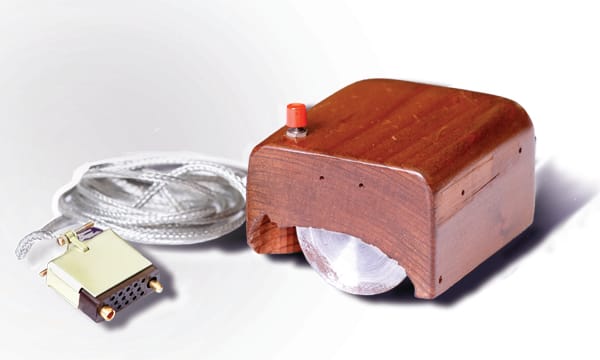 Redwood case

🧪 Try it in your browser
You need a computer with a mouse (or a touchpad, the flat square on a laptop that you slide your finger on) and a keyboard. You will use the browser console: a place in the browser's built-in tools where you can type short commands.
Safety rule: only type code in the console that you understand or that comes from a source you trust. Never paste code that a stranger sends you. The code below only shows your own clicks and key presses on this tab. It sends nothing anywhere.
In Chrome, Edge or Firefox, open
https://example.com.Open the console:
- Windows: press
Ctrl+Shift+J(in Firefox:Ctrl+Shift+K) - Mac: press
Cmd(⌘) +Option(⌥) +J(in Firefox:Cmd+Option+K)
- Windows: press
Click the empty line at the bottom of the console. Type this line yourself, exactly (some browsers do not allow pasting here), then press
Enter. It tells the browser: "every time there is a click, write its position in the console".addEventListener("click", e => console.log(e.clientX, e.clientY))Type this second line, then press
Enter. It means: "every time a key is pressed, write the key's name".addEventListener("keydown", e => console.log(e.key))After each line, the console may show the word
undefined. That is normal. If you see a red error message, check each character and try again.Now click a few empty places on the page, away from the text and the link.
Press the
Bkey. Then holdShiftand pressBagain.When you are done, close the tab.
What you should see: after each click, the console shows two numbers (sometimes with decimals). They are the position of your click in pixels, measured from the left and top edges of the part of the window that shows the page. After step 6, with an English keyboard layout, the console shows b, then Shift, then B. Shift is a key too, so it gets its own line. A slightly different list is fine.
What happened: your mouse and keyboard (input devices) sent signals. Your two lines asked the browser to show them as numbers and key names on your screen (an output device).
Common misunderstandings
- "The screen is the computer." No. The screen is an output device. The parts that process and keep information are separate. On a laptop or phone, they are in the same box as the screen.
- "A device is either input or output, never both." No. A touch screen does both, and so does an internet connection.
- "Input always comes from a person." No. Sensors and other computers can give input too.
Recap
- Input devices bring information into the computer. Output devices give results back to the world.
- Input devices turn movements, sounds and touches into numbers. Output devices turn numbers into light, sound or print.
- Some devices, such as a touch screen, do both. The first computer mouse was built in the 1960s, in a lab set up by Douglas Engelbart.
Sources
- Code.org CS Discoveries, Lesson 5: Input and Output: https://curriculum.code.org/csd-18/unit1/5/
- Wikipedia, Input/output: https://en.wikipedia.org/wiki/Input/output
- Stanford CS101, Bits and Bytes: https://web.stanford.edu/class/cs101/bits-bytes.html
- MDN Web Docs, Digital audio concepts: https://developer.mozilla.org/en-US/docs/Web/Media/Guides/Formats/Audio_concepts
- Stanford CS101, Image Introduction: https://web.stanford.edu/class/cs101/image-1-introduction.html
- Computer History Museum, Revolution: Input and Output: https://www.computerhistory.org/revolution/input-output/14/intro
- Computer History Museum, Revolution: Keyboards: https://www.computerhistory.org/revolution/input-output/14/355
- Computer History Museum, Revolution: Video Displays: https://www.computerhistory.org/revolution/input-output/14/349
- Computer History Museum, Revolution: The Mouse: https://www.computerhistory.org/revolution/input-output/14/350
- Computer History Museum, CHM acquires original SRI mouse: https://computerhistory.org/sri-mouse-mn052024/
- ETHW, Milestones: Public Demonstration of Online Systems and Personal Computing, 1968: https://ethw.org/Milestones:Public_Demonstration_of_Online_Systems_and_Personal_Computing,_1968
- MDN Web Docs, MouseEvent.clientX: https://developer.mozilla.org/en-US/docs/Web/API/MouseEvent/clientX
- MDN Web Docs, MouseEvent.clientY: https://developer.mozilla.org/en-US/docs/Web/API/MouseEvent/clientY
- MDN Web Docs, KeyboardEvent.key: https://developer.mozilla.org/en-US/docs/Web/API/KeyboardEvent/key
- Chrome for Developers, Open Chrome DevTools: https://developer.chrome.com/docs/devtools/open
- Microsoft Edge DevTools, Keyboard shortcuts: https://learn.microsoft.com/en-us/microsoft-edge/devtools/shortcuts/
- Firefox DevTools User Docs, Web Console: https://firefox-source-docs.mozilla.org/devtools-user/web_console/index.html
- Chrome for Developers, Self-XSS protection: https://developer.chrome.com/blog/self-xss
Written with AI · Reviewed by AI · Not yet checked by a human
Found a mistake, or something you did not understand? Report a problem.